When a Client Update Breaks Their Site: Recovering One Tenant Without Touching the Rest

Every freelancer who manages client sites has had the message: “the site is down and I did not touch anything.” Usually something did change, a plugin auto-updated, an edit went wrong, a theme change broke the layout, and now a client is waiting while you figure out how to undo it. If your only option is to rebuild by hand or restore a full-server backup that also rolls back your other clients, a single broken site becomes an afternoon of risk.
This guide covers the recovery end of the client-site lifecycle: getting one client site back to a known-good state quickly, without disturbing anything else you manage. It is the safety net under the one-dashboard maintenance workflow, because the reason you can update confidently is that you can roll back cleanly.
Why Recovery Is Risky on a Shared Setup
The way most freelancers host clients makes recovery an all-or-nothing gamble:
- One server backup covers everyone. If all your clients share an install and you restore last night’s full backup, you also roll back every other client’s changes from today. Fixing one site breaks four others.
- Manual repair is slow under pressure. Rebuilding a broken site by hand, or hunting for which plugin update caused the failure, is exactly the wrong task to be doing while a client watches.
- You may not have a recent restore point. If backups are manual, the last good copy might be a week old, so recovery means losing real work even when it succeeds.
The goal is to recover a single client site, from a recent backup, in minutes, while every other site you manage stays exactly as it was.
Recover One Tenant, Leave the Rest Alone
GrabWP Tenancy Pro hosts each client as an isolated tenant with its own database and content, and its backup and restore run per tenant. That isolation is the whole point during recovery: restoring one client touches only that client.
You already have restore points
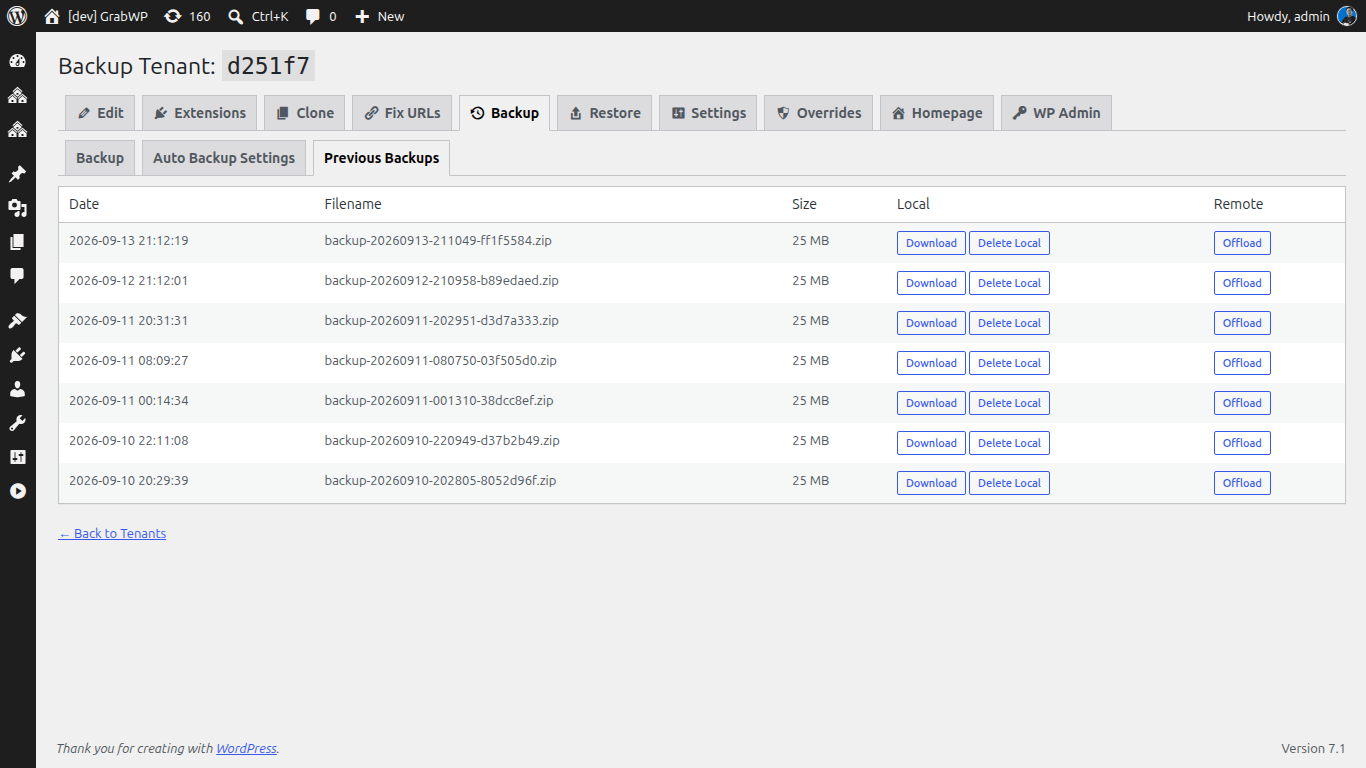
If you followed the maintenance workflow and turned on scheduled automatic backups, recovery starts from a good position. Those backups gave you recent restore points on a schedule you chose, from hourly to monthly, with old copies pruned automatically. When a site breaks, you are not scrambling to find a backup, you are picking which recent one to restore.
Roll back from the tenant’s own backups
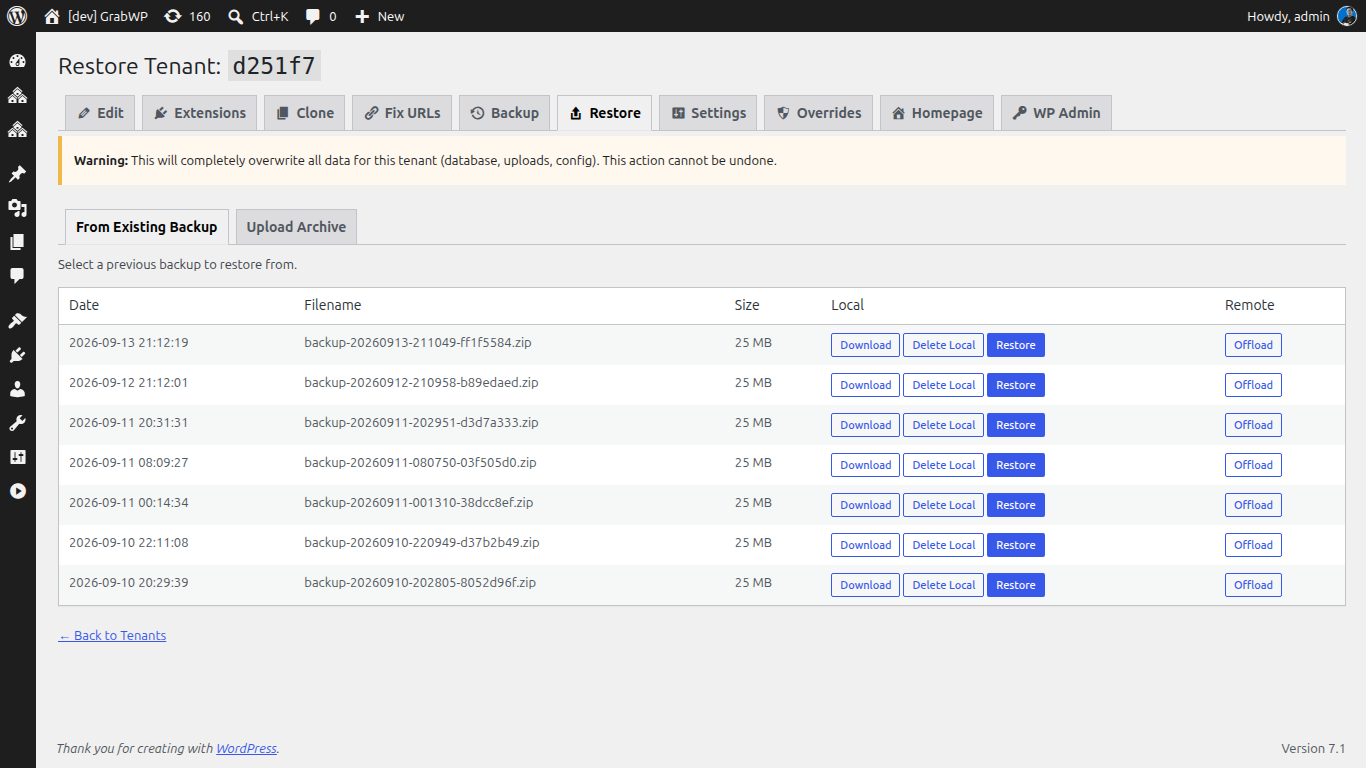
From the tenant’s restore screen, Pro lets you list, download, delete, and restore previous on-disk backups, with restore tabs for choosing an existing backup versus uploading a new archive. You select the last known-good backup and run the restore. The 8-step restore workflow covers the tenant’s database, uploads, content, and config, with an AJAX progress UI so you can watch each step complete instead of guessing whether it worked.
Because the restore is scoped to that one tenant, none of your other clients are affected. The broken site returns to its working state, and the rest of your book keeps running.
Recover even across database types
Pro restore works across database types, so a tenant can be restored between shared MySQL, dedicated MySQL, and SQLite. If you moved a client between database layouts during maintenance, a backup is still usable. The site is not locked to the exact configuration it was captured in.
When the server itself is the problem
Scheduled backups can offload to S3-compatible object storage after each run, with per-tenant isolation on the storage side. If the failure is bigger than one bad update, a disk issue or a host problem, you still have offsite copies of each client’s site to restore from, rather than depending on the same server that just failed you.
A Recovery Playbook You Can Trust
Put the pieces together and recovery becomes routine instead of frightening:
- Confirm the scope. Only the one client site is affected, because tenants are isolated. You are not touching anyone else.
- Pick a restore point. Scheduled backups mean a recent good copy already exists on disk or in S3.
- Restore that tenant. Run the 8-step restore from the tenant’s restore screen and watch it complete.
- Verify and move on. Check the client site works, tell the client it is handled, and your other clients never knew anything happened.
The client experience is a short outage and a quick fix instead of a lost day, and your exposure is one site instead of your whole install.
Recovery Closes the Lifecycle
Being able to recover one client cleanly is what makes the rest of the workflow safe. You can clone a starter site for a new client, maintain every site from one dashboard, and hand a finished site off without lock-in, all with the confidence that a bad update is a few-minute rollback rather than a disaster. Onboarding, maintenance, handoff, and recovery together let you run a full book of client sites from a single install without the risk scaling with the client count.
Managing client sites and want per-tenant backups you can restore in minutes without touching your other clients? The Pro plan includes scheduled backups, per-tenant restore, and cross-database recovery from $9.99/month.
Tác giả
GrabWP Team
WordPress Multi-Tenancy Experts
The GrabWP team builds and maintains the GrabWP Tenancy plugin, helping developers and agencies run scalable multi-tenant WordPress platforms. With years of experience in WordPress core, hosting infrastructure, and plugin development.
Câu hỏi thường gặp
- Can I restore one client site without affecting my other clients?
- Yes. In GrabWP Tenancy Pro each tenant is isolated with its own database and content, and restore runs per tenant. You roll the broken client back to one of its own backups while every other tenant on the install keeps running untouched.
- How fast can I roll back after a bad update?
- If scheduled backups are on, you already have recent restore points. From the tenant's restore screen you pick an existing on-disk backup and run the 8-step restore with a progress UI, so recovery is a few minutes of oversight rather than a manual rebuild.
- Do I need to keep separate backup files somewhere to recover?
- Pro lists, downloads, deletes, and restores previous on-disk backups from the admin, and scheduled backups can offload to S3-compatible storage. You restore from an existing backup directly, and you also have offsite copies if the server itself is the problem.
- Can I recover a site even if its database type changed?
- Yes. Pro restore works across database types, so you can restore between shared MySQL, dedicated MySQL, and SQLite. A tenant is not locked to the exact database layout it was backed up from.
Editorial standards: Our content is written by WordPress experts with hands-on multi-tenancy experience. Articles are fact-checked and regularly updated to ensure accuracy.