A Tenant Backup Strategy for Multi-Tenant WordPress

Running a fleet of client sites on one WordPress install is efficient until the day someone needs a restore. If your backup tooling only thinks in terms of “the whole server,” a single client’s mistake becomes everyone’s downtime. A multi-tenant backup strategy has to work at the granularity of one tenant: back up, prune, offload, and restore each client independently. This guide walks through how to design that with GrabWP Tenancy Pro.
Why Fleet Backups Need Per-Tenant Granularity
The whole point of multi-tenancy is that tenants share a codebase but keep their data isolated. Your backup strategy should respect the same boundary. A server-wide snapshot is fine for disaster recovery, but it is the wrong tool when Client A deletes a page and wants it back. Restoring a full-server image to fix one tenant means rolling back every other tenant’s orders, comments, and edits too.
GrabWP Tenancy Pro treats each tenant as its own backup unit. A backup captures that tenant’s database, uploads, content, and config; a restore rebuilds exactly those, and nothing else. That means you can recover Client A to yesterday while Client B keeps taking sign-ups this morning. For agencies and hosts, this is the difference between a five-minute fix and a fleet-wide incident. It also keeps blast radius small: a bad restore can only ever touch the one tenant you targeted.
Scheduling: Global Defaults With Per-Tenant Overrides
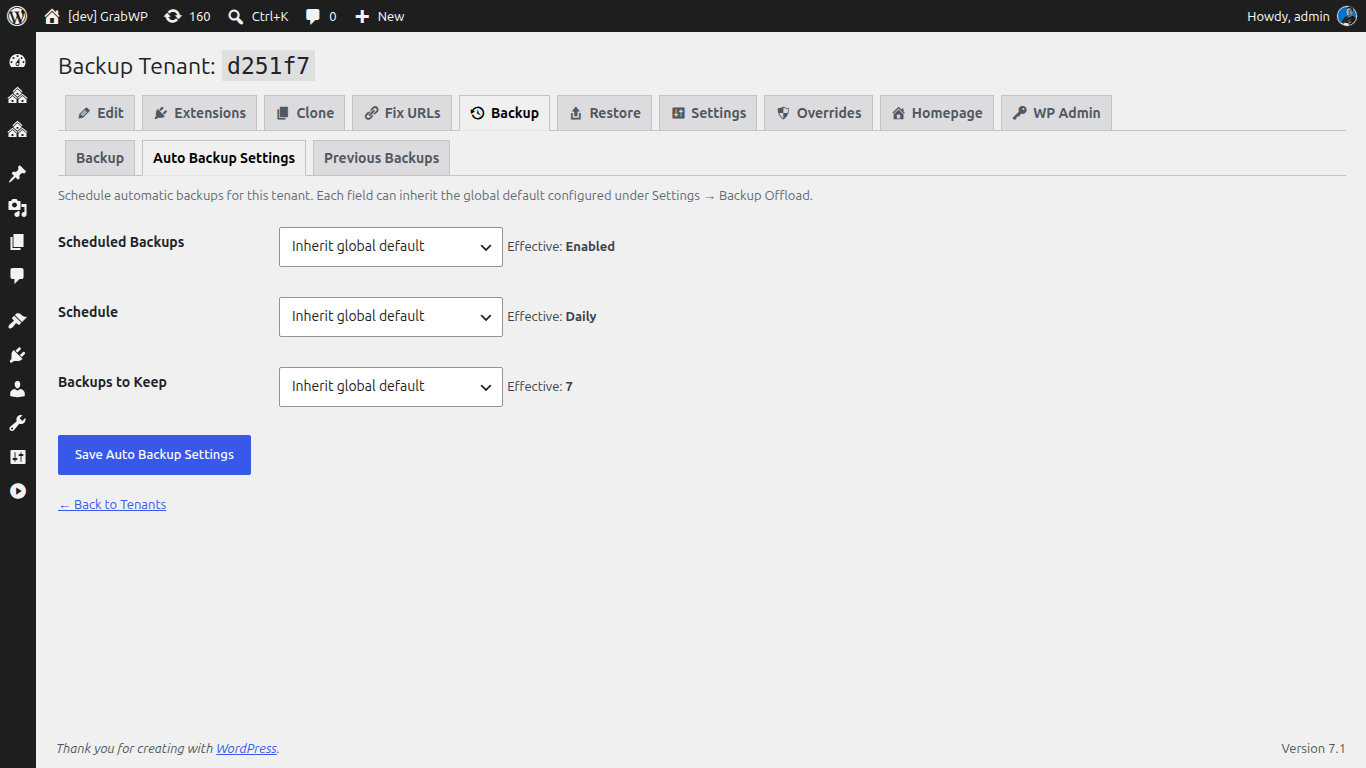
Manual backups do not scale past a handful of sites, so scheduling is where a real strategy starts. GrabWP lets you set global defaults for automatic tenant backups and then override them per tenant. Each tenant carries its own enabled state, schedule, and retention count, so your flagship client can run more often than a low-traffic brochure site without you managing dozens of separate cron entries by hand.
Recurrence options cover the range most fleets need: hourly, twice-daily, daily, weekly, fortnightly, and monthly. Pick a sensible global baseline, then bump the busy tenants up and quiet ones down.
Retention is the other half of scheduling. GrabWP prunes both local and remote backups after a successful run, keeping only the retention count you set. That keeps disk usage bounded and stops old backups from piling up silently. Set retention per tenant so a high-change store keeps a deeper history than a static site. Choose numbers that fit your own storage budget and recovery expectations rather than copying a generic default.
Offsite Safety With S3
Backups that live only on the same server as the sites they protect are not really backups. GrabWP supports S3-compatible remote storage so each tenant’s backups can leave the box. The driver registry lets you reuse the S3 credentials you already have configured or supply custom S3 credentials for a dedicated bucket.
A few features make this practical at fleet scale:
- Auto-offload triggers the S3 upload immediately after a backup completes, so there is no window where the only copy is local.
- Pull-to-local downloads a remote-only backup from S3 back to the server when you need it for a restore, so you can keep the server lean and still recover fast.
- Remote deletion from the backup list UI lets you clear an S3 copy without leaving the dashboard.
- Per-tenant file-count limits auto-prune old remote backups once a tenant exceeds its configured number of files in S3, so remote storage stays as bounded as local storage.
The tenant list shows a storage-driver badge (S3 or Local) so you can see at a glance which tenants are offsite-protected and which are not. Use it as a checklist: no client should sit on Local-only for long.
The Restore Workflow
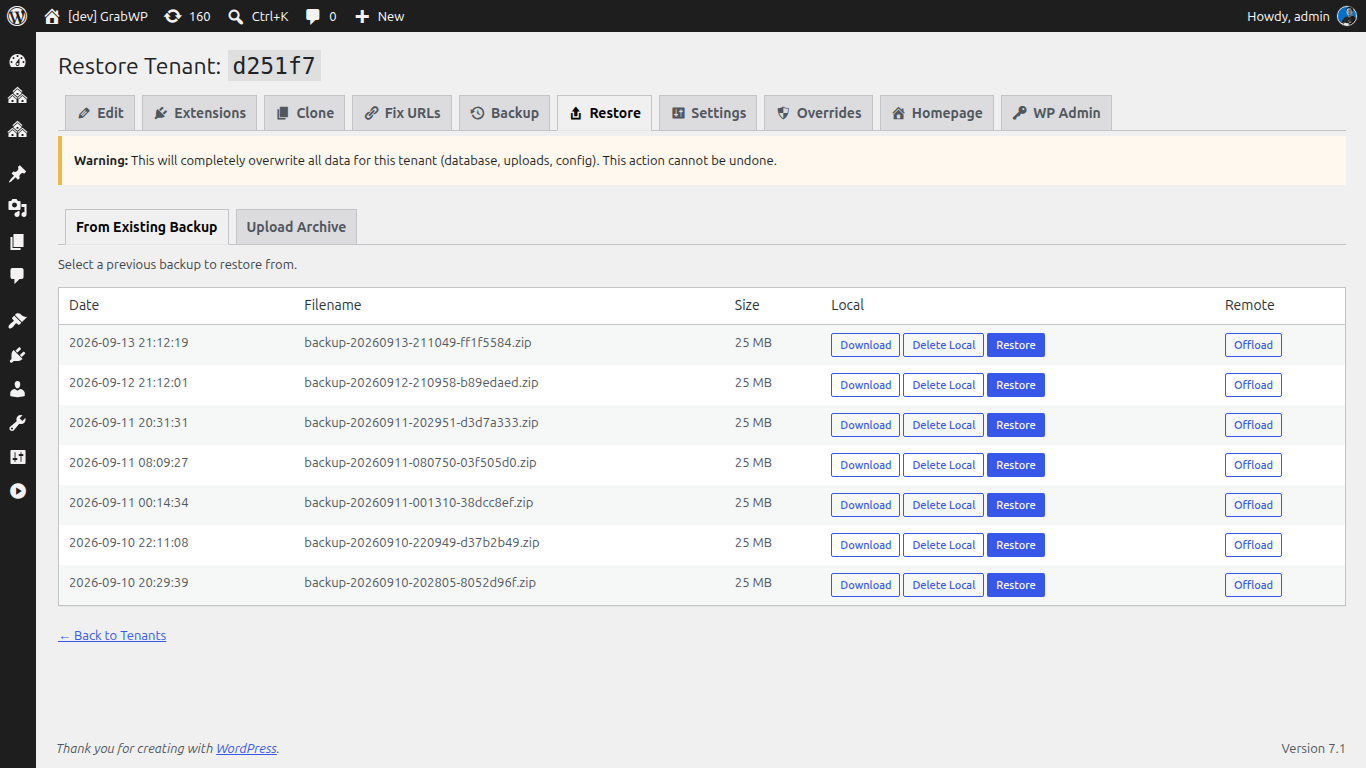
A backup you have never restored is a hope, not a plan. GrabWP’s restore is a structured, multi-step process with an AJAX progress UI so you can watch each stage complete instead of staring at a blank spinner. The backup itself runs as a 7-step job; the restore runs as an 8-step job, covering the tenant’s database, uploads, content, and config.
The restore page gives you two tabs. The existing backups tab restores from a copy already on disk, which is the common path for “undo yesterday.” The upload tab lets you restore from a backup file you bring to the server, which is how you move a tenant between environments or recover from an archived copy. Cross-database restore is supported across DB types, so a tenant captured on one database engine can be rebuilt on another without hand-editing dumps.
From the backup management UI you can list, download, delete, and restore previous on-disk backups, so the whole lifecycle lives in one place. The practical habit worth building: periodically restore a tenant into a throwaway environment and confirm it comes back clean. That is how you find out your strategy works before you need it to.
Note the boundary here. This is per-tenant backup and restore inside GrabWP Tenancy Pro. The separate free GrabWP Restore plugin is a different tool that rebuilds a Pro export ZIP into a standalone site. Reach for it when you are graduating a tenant off the fleet, not for routine fleet recovery.
Automation With WP-CLI and Schedule Assurance
Everything above is scriptable. GrabWP ships WP-CLI commands to run a backup, configure a tenant’s schedule, show status plus recent history, and reschedule every tenant at once. That makes backups a first-class part of your provisioning and CI workflows: spin up a tenant, set its schedule, and move on. Rescheduling the whole fleet in one command is handy after you change your global policy.
The caveat with any WordPress scheduling is WP-Cron, which only fires when the site gets traffic. On a quiet tenant, a backup that “should” run daily might drift. Schedule Assurance in Pro Settings exists for exactly this: it shows WP-Cron status, the next scheduled backup, the available intervals, and, when WP-Cron is disabled, guidance for wiring up a real system cron. The reliable setup for a serious fleet is to disable WP-Cron and drive wp on a system crontab, so scheduled tenant backups fire on a fixed clock regardless of traffic.
A Recommended Baseline Strategy
Pulling it together, here is a sensible starting point you can tune to your own storage and recovery needs:
- Set a global daily schedule as the default, then override busy tenants up (twice-daily or hourly) and quiet ones down (weekly).
- Set a per-tenant retention count that matches each tenant’s rate of change, so high-traffic stores keep a deeper history.
- Turn on auto-offload to S3 for every tenant and set a per-tenant file-count limit so remote storage self-prunes.
- Drive schedules from system cron with WP-Cron disabled, and check Schedule Assurance after any change.
- Test restores regularly by rebuilding a tenant into a scratch environment.
That gives you granular recovery, bounded storage on both ends, and offsite copies without babysitting.
The GrabWP Tenancy base plugin is free on WordPress.org, and per-tenant backup, scheduling, S3 offload, and cross-database restore come with GrabWP Tenancy Pro at $9.99/month. If you are still deciding how to isolate tenant data in the first place, read our companion guide on dedicated MySQL vs SQLite per-tenant WordPress.
Tác giả
GrabWP Team
WordPress Multi-Tenancy Experts
The GrabWP team builds and maintains the GrabWP Tenancy plugin, helping developers and agencies run scalable multi-tenant WordPress platforms. With years of experience in WordPress core, hosting infrastructure, and plugin development.
Câu hỏi thường gặp
- Can I restore one tenant without affecting the others?
- Yes. GrabWP Tenancy Pro backs up and restores each tenant independently. A restore rebuilds a single tenant's database, uploads, content, and config, so the rest of your fleet keeps running untouched.
- Where are remote backups stored?
- GrabWP supports S3-compatible remote storage. You can reuse your current S3 credentials or add custom ones, auto-offload each backup to S3 as soon as it completes, and pull remote-only backups back to the server when you need them.
- What happens if WP-Cron is unreliable on my server?
- Schedule Assurance in Pro Settings reports WP-Cron status, your next scheduled backup, and the available intervals. When WP-Cron is disabled it gives system-cron guidance so scheduled tenant backups still fire on time.
Editorial standards: Our content is written by WordPress experts with hands-on multi-tenancy experience. Articles are fact-checked and regularly updated to ensure accuracy.