Hand Off a WordPress Site With No Lock-In When a Client Leaves

Trust is part of your service. Clients are far more comfortable committing to you when they know they can walk away with their website intact. This guide shows the clean, no-lock-in offboarding path: export a client’s tenant out of your platform and let them import it into their own standalone WordPress hosting using the free GrabWP Restore plugin.
Why portability matters for trust
Lock-in is a short-term win that costs you long-term reputation. A client who feels trapped will hesitate to sign in the first place, and will badmouth you if leaving turns into a hostage situation. Offering a clean exit up front removes that objection and signals confidence in your work.
Portability also protects you. When a relationship ends, a smooth handoff closes the engagement professionally instead of dragging into disputes over “give me my site.” The goal here is specific: move one client’s tenant OUT of your shared platform and onto hosting they control. This is different from an in-place rollback, where you restore a tenant from its own backup while it stays on your system. Here, the client is taking ownership and leaving.
Step 1: Export the client’s tenant database and files
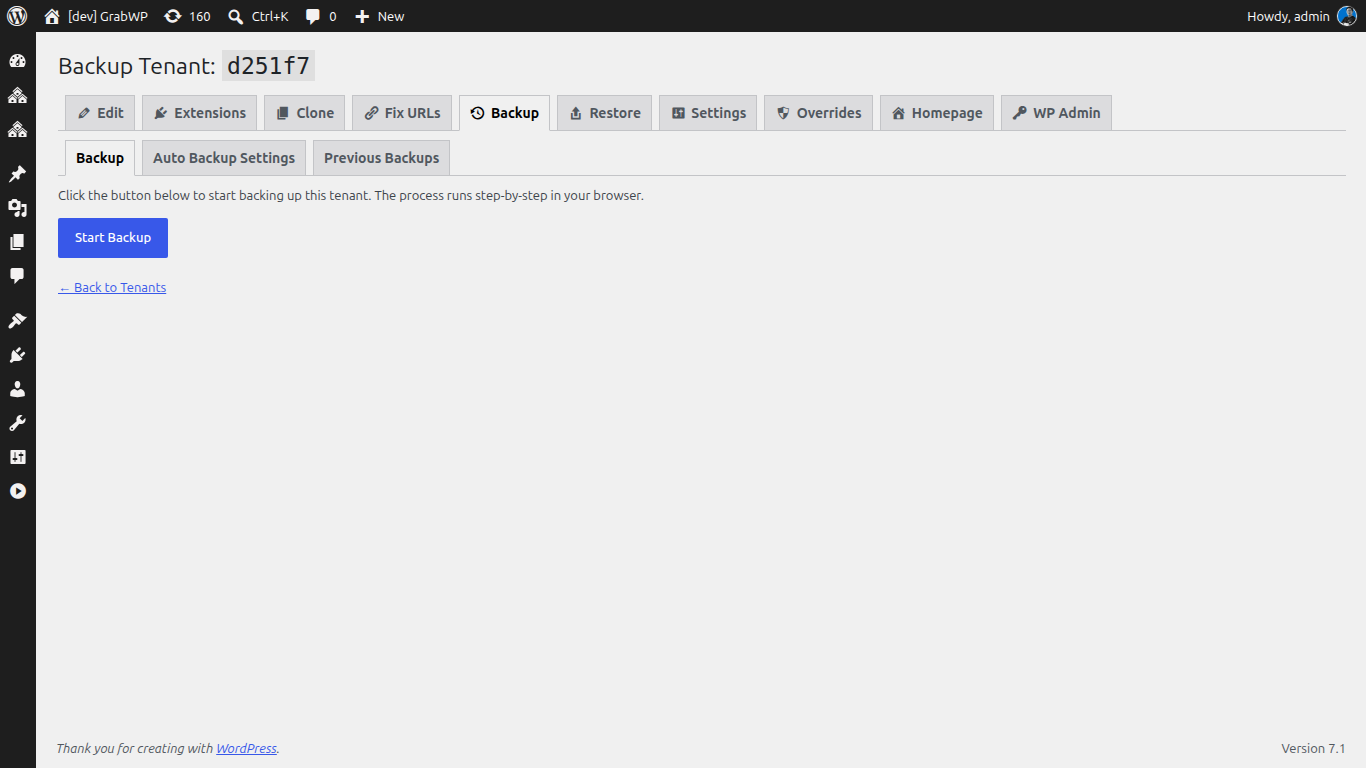
GrabWP Tenancy Pro includes tenant export tooling that packages a tenant’s database and files so you can migrate that tenant to standalone hosting.
- In your main admin, open GrabWP > Tenants and select the departing client’s tenant.
- Run the tenant export to produce an archive of that tenant’s database and files.
- Keep the export archive, which is the GrabWP export ZIP the destination site will import.
Because each tenant already has its own isolated data, you are exporting only that client’s site, not touching any other client in your portfolio.
Step 2: Stand up the client’s standalone hosting
The client needs a destination that is theirs.
- Have the client set up a fresh WordPress install on their own hosting account.
- Confirm the destination meets the requirements: WordPress 6.2 or later and PHP 7.4 or later.
- Make sure the export archive fits within the destination server’s
upload_max_filesizeandpost_max_sizelimits, since the import uses standard WordPress upload validation.
This fresh install becomes the client’s independent site once the import completes.
Step 3: Import with the free GrabWP Restore plugin
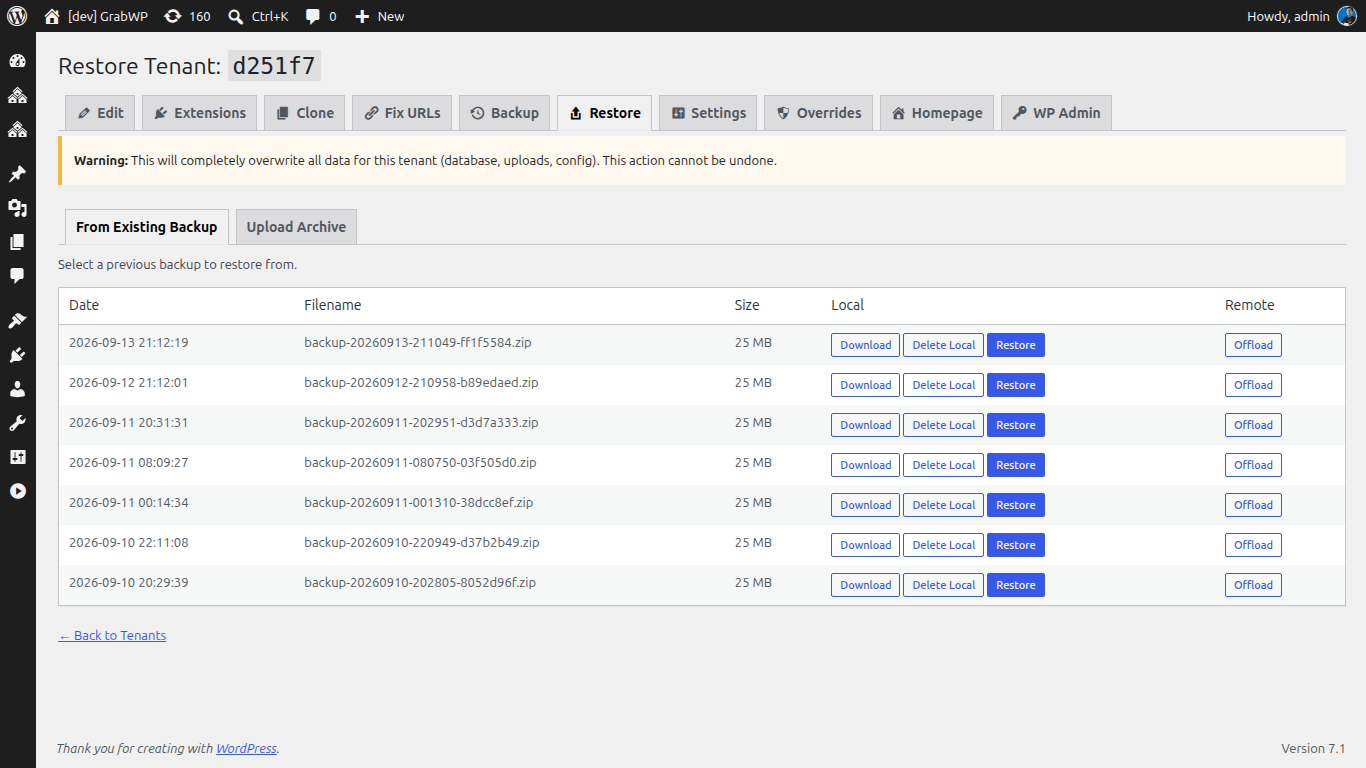
On the destination standalone install, the client (or you, on their behalf) uses the free GrabWP Restore plugin to bring the exported site in.
- Install the
grabwp-restoreplugin on the destination site and activate it. - Go to Tools > GrabWP Restore and upload the GrabWP export ZIP.
- Check “I have backed up my website” and confirm the destructive operation.
- Let the restore run. It handles the migration end to end:
- Streaming SQL import so large databases import reliably
- Automatic table prefix rewriting to match the destination site
- Database-wide URL search-replace, including serialized data
- Site URL auto-update
- Safe rename of existing plugins, themes, and uploads directories to
.oldbefore replacement
Because restore replaces the entire site, run it on a fresh install the client is taking over, not on a site with content you want to keep.
Step 4: Verify the handed-off site
Do not call it done until the client’s standalone site is confirmed working.
- Log in with the admin credentials from the exported site (the destination’s old credentials no longer apply after the database import).
- Click through key pages, menus, and media to confirm content and links resolve to the new site URL.
- Once verified, remove the
.olddirectories (uploads.old,plugins.old,themes.old) from wp-content, then deactivate and delete the GrabWP Restore plugin. - On your side, once the client confirms everything works, remove their tenant from your platform.
The client walks away owning a fully working WordPress site, and you close the engagement with your reputation for fair dealing intact.
This is the offboarding bookend to onboarding. To make delivery repeatable in the first place, see how to productize client site delivery with one template tenant, and while clients are with you, let them manage their own isolated site.
Deliver client sites with a clean exit built in. GrabWP Tenancy Pro is $9.99/month flat for your whole portfolio (annual $99.99/yr, lifetime $499.99), and GrabWP Restore is free.
Written by
GrabWP Team
WordPress Multi-Tenancy Experts
The GrabWP team builds and maintains the GrabWP Tenancy plugin, helping developers and agencies run scalable multi-tenant WordPress platforms. With years of experience in WordPress core, hosting infrastructure, and plugin development.
Frequently Asked Questions
- Can I move a client tenant out to their own standalone hosting?
- Yes. GrabWP Tenancy Pro includes a tenant export that packages the tenant's database and files so you can migrate that tenant to standalone hosting. This is an export out of your platform to the client's own WordPress install, not an in-place operation on your system.
- How does the client import the exported site?
- On the destination standalone WordPress install, they use the free GrabWP Restore plugin. It imports the exported database with streaming SQL import, rewrites the table prefix to match the destination, runs a database-wide URL search-replace (including serialized data), auto-updates the site URL, and safely renames the existing content directories to .old before replacement.
- Is GrabWP Restore a paid plugin?
- No. GrabWP Restore is a free standalone WordPress plugin. It restores a full site from a GrabWP Tenancy Pro export archive, handling database import with prefix rewriting, file restoration, and site URL updates.
- How is this different from rolling back a tenant in place?
- An in-place rollback restores a tenant from its own backup while it stays on your platform. A handoff is the opposite direction: you export the tenant OUT to the client's own standalone install and they take ownership. This guide covers the export-out handoff, not the in-place rollback.
- Will the restore overwrite the destination site?
- Yes, restore is a destructive operation that replaces the entire destination WordPress site, which is why the plugin requires an explicit backup confirmation and renames existing plugins, themes, and uploads directories to .old first. It is intended for a fresh standalone install that the client is taking ownership of.
- How much does GrabWP Tenancy Pro cost?
- GrabWP Tenancy Pro is $9.99/month flat for your entire client portfolio, with an annual plan at $99.99/yr and a lifetime license at $499.99. GrabWP Restore, used on the destination site, is free.
Editorial standards: Our content is written by WordPress experts with hands-on multi-tenancy experience. Articles are fact-checked and regularly updated to ensure accuracy. Last verified: .