
Self-guided demo
See GrabWP with your own eyes
A freelancer-focused walkthrough of adding, cloning, isolating, backing up, and restoring a client site. Built from real product screenshots, plus a live install you can click through.
From empty install to a client site
Five real screens from GrabWP Tenancy Pro. Each step is what you do when onboarding a client on your own hosting.
- 1
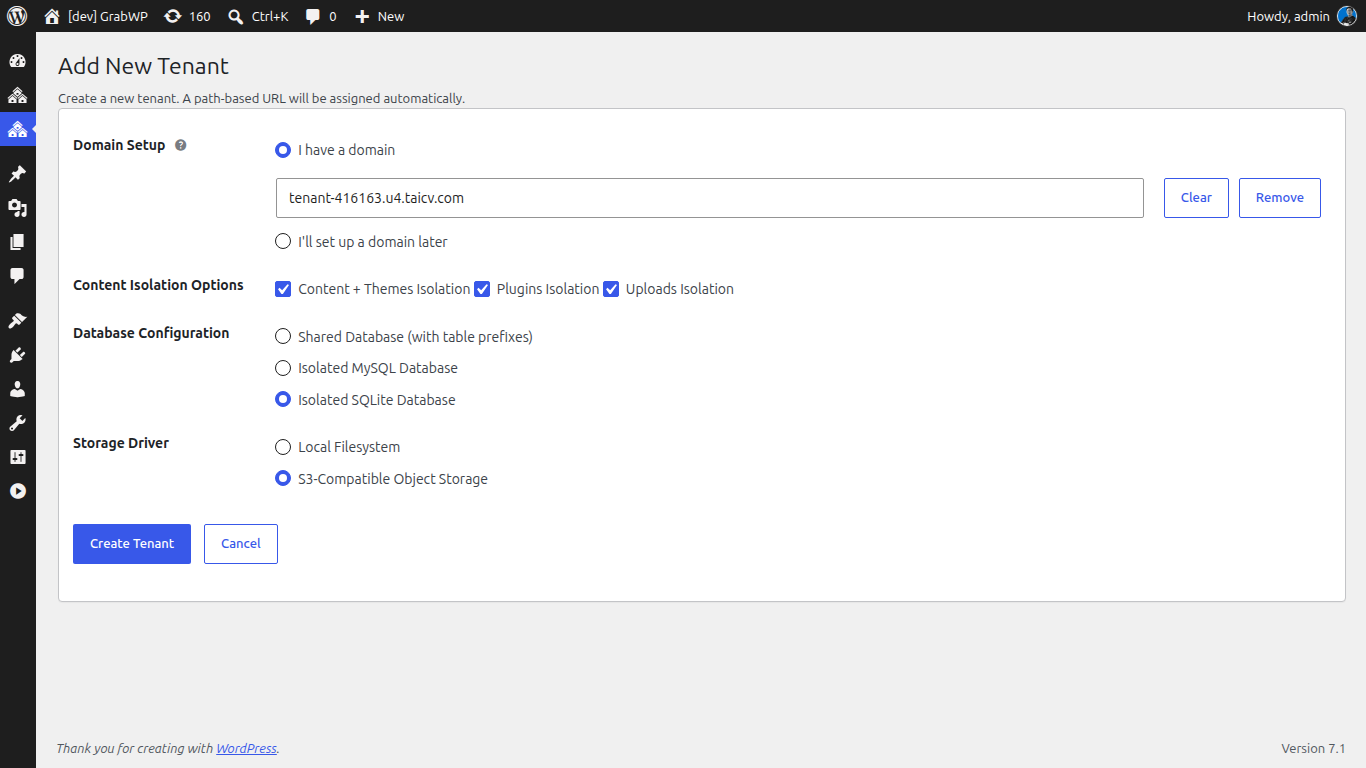
Add a client site in seconds
Open Add New Tenant, choose a domain now or path routing later, and GrabWP creates the site tables and upload folder for you.
- 2
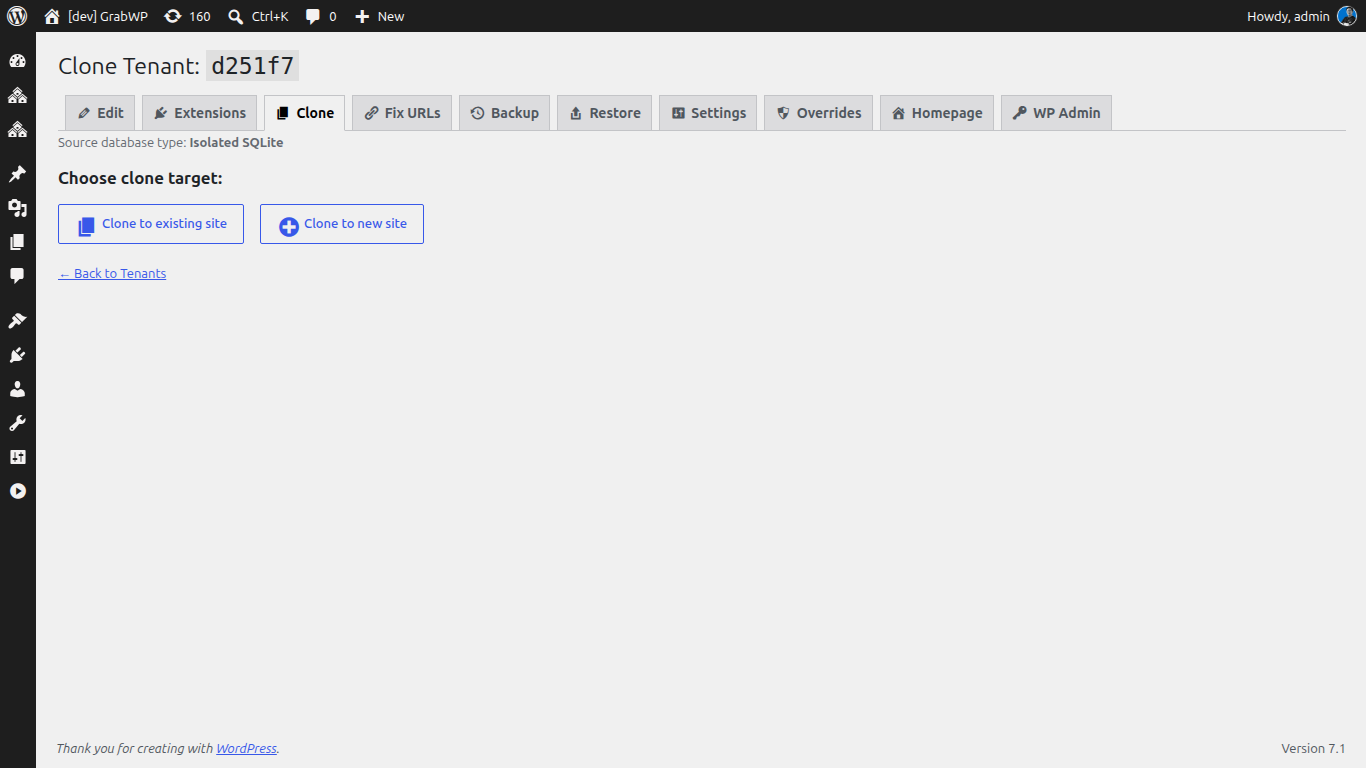
Clone from a template, launch in minutes
Pick a destination tenant and clone content from a template site so the new client starts from a ready setup.
- 3
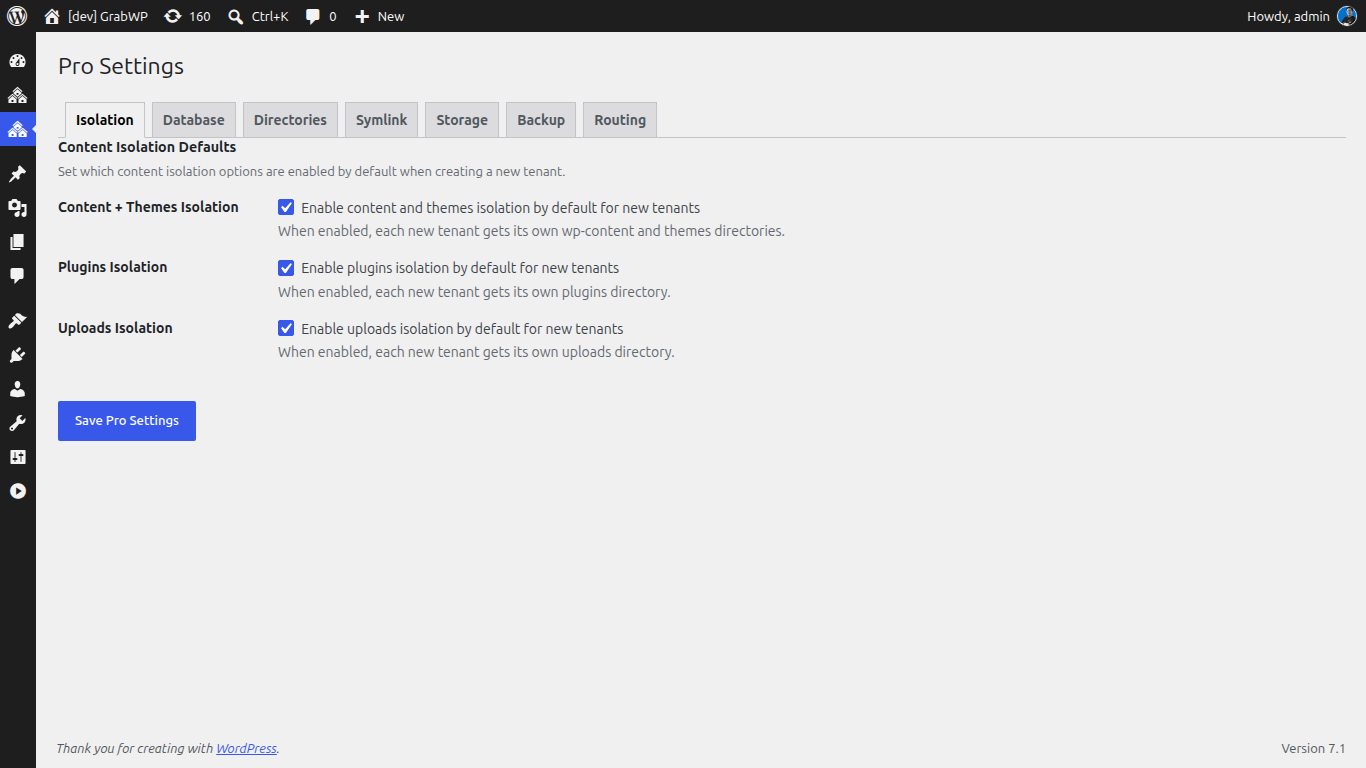
Isolate each client's data
Pro settings keep content and plugins isolated per tenant so one client's changes stay on that site.
- 4
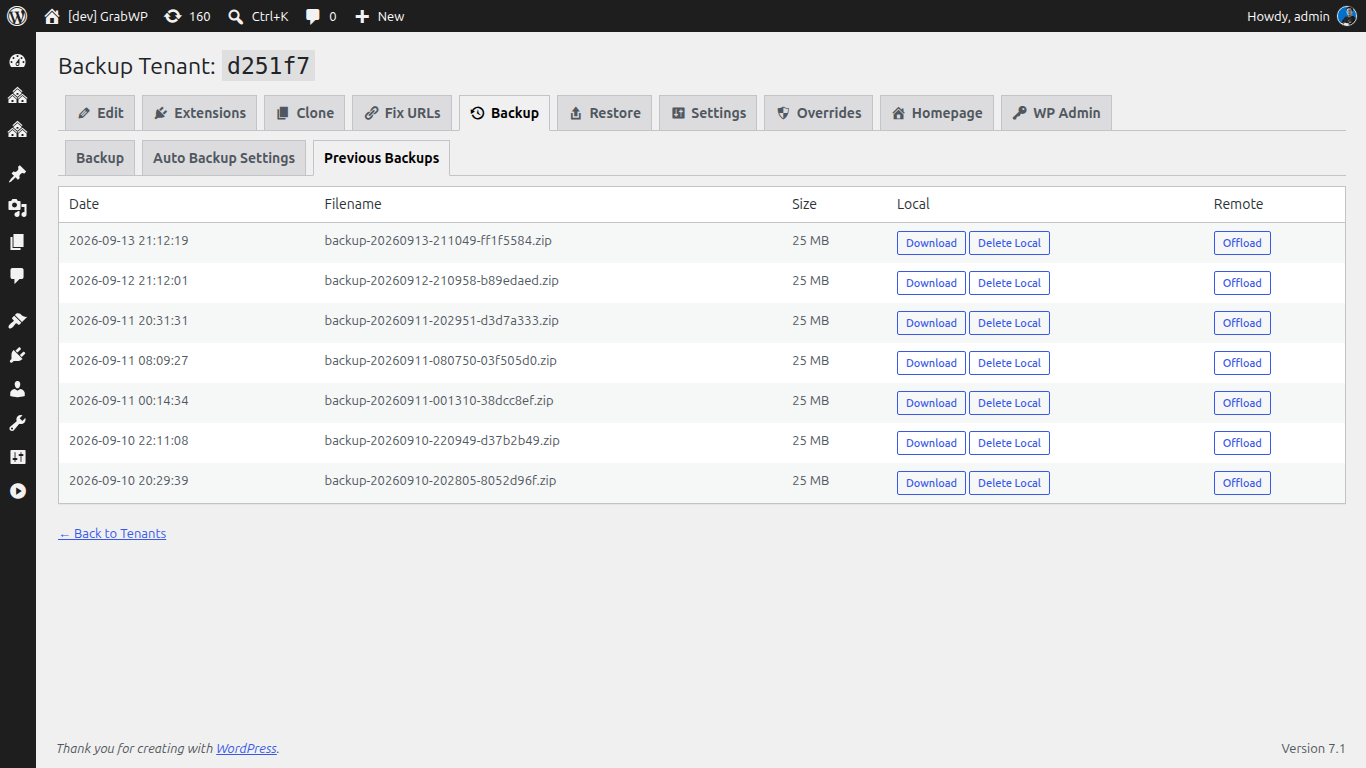
Back up one client on its own
Start a per-tenant backup that packages that site's database, uploads, and config into a ZIP you can download.
- 5
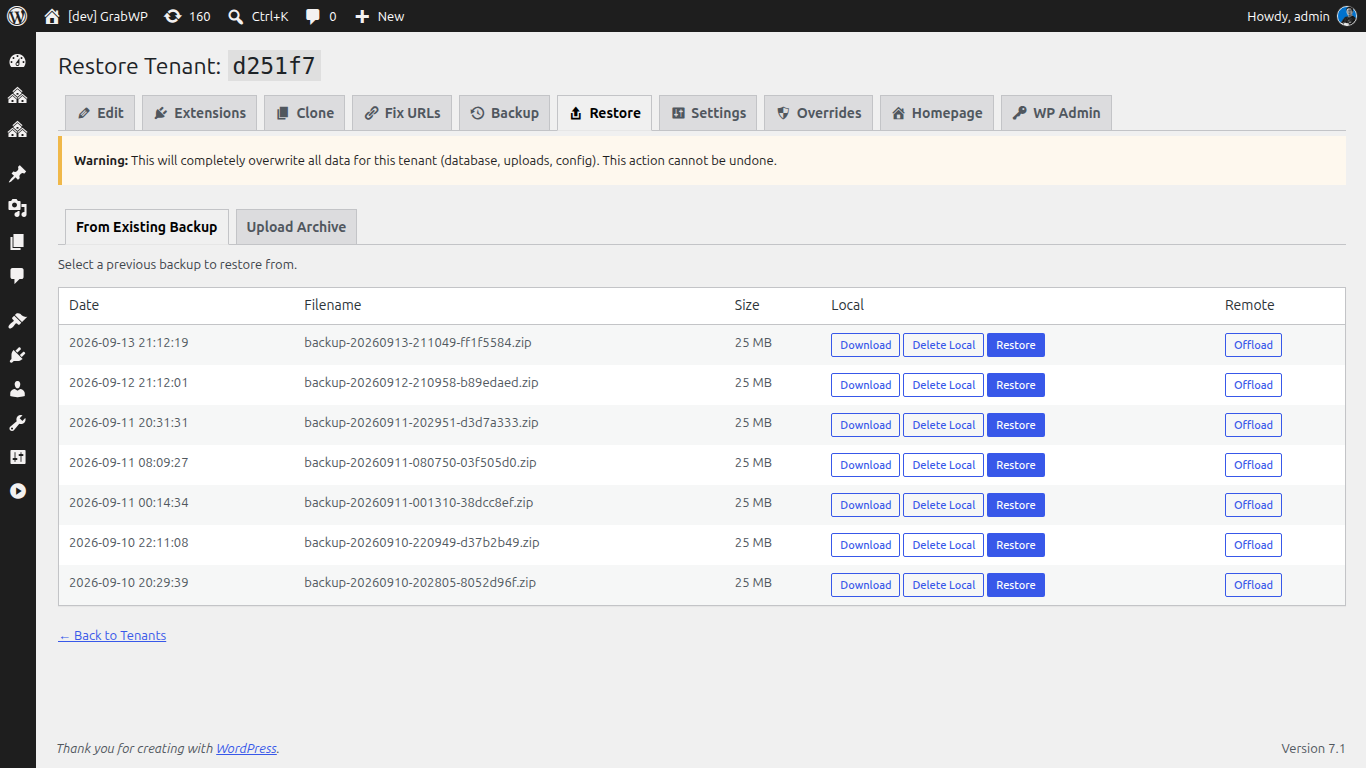
Restore safely without touching other sites
Upload a backup ZIP to restore one tenant site. Other sites on the same install stay untouched.
Try the live demo
Open a real multi-tenant GrabWP install and click through tenant sites yourself. No signup required.
Ready to run this for your clients?
Start a Pro free trial and onboard your next client site on your own hosting.