Hand Off a Finished WordPress Site to Your Client Without Lock-In

Building a client site inside your own WordPress setup is efficient. Handing it off cleanly is where a lot of freelancers get stuck. The client wants the finished site on their own hosting and under their own control, and you do not want to be their unpaid host forever. If the export is messy, you end up doing a manual migration, fixing broken URLs, and answering support emails for a site you no longer manage.
This guide shows a clean handoff workflow: export one client from your multi-tenant setup as a single archive, hand it over, and let the client restore it onto any standard WordPress install with no lock-in. It builds on the starter-site clone workflow, which covers the other end of the relationship: spinning new client sites up fast.
Why Handoff Is Usually Painful
The typical freelancer setup makes offboarding harder than onboarding:
- The site lives tangled with your other work. If every client shares one install, you cannot just hand over a database dump without leaking other clients’ data.
- Manual migration is fiddly. Exporting files, dumping the database, editing the table prefix, search-replacing the old domain, and fixing serialized data by hand is slow and easy to get wrong.
- Lock-in feels bad for everyone. A client who cannot take their site elsewhere is a client who does not fully trust you. A clean exit is a selling point, not a loss.
The goal is a handoff that takes minutes, includes only the one client’s site, and leaves them running independently on their own hosting.
The Clean Handoff Workflow
The workflow has two halves. You export the single client tenant from your GrabWP Tenancy Pro setup, then the client restores that archive onto their own WordPress install using the free GrabWP Restore plugin.
Step 1: Export the one client tenant
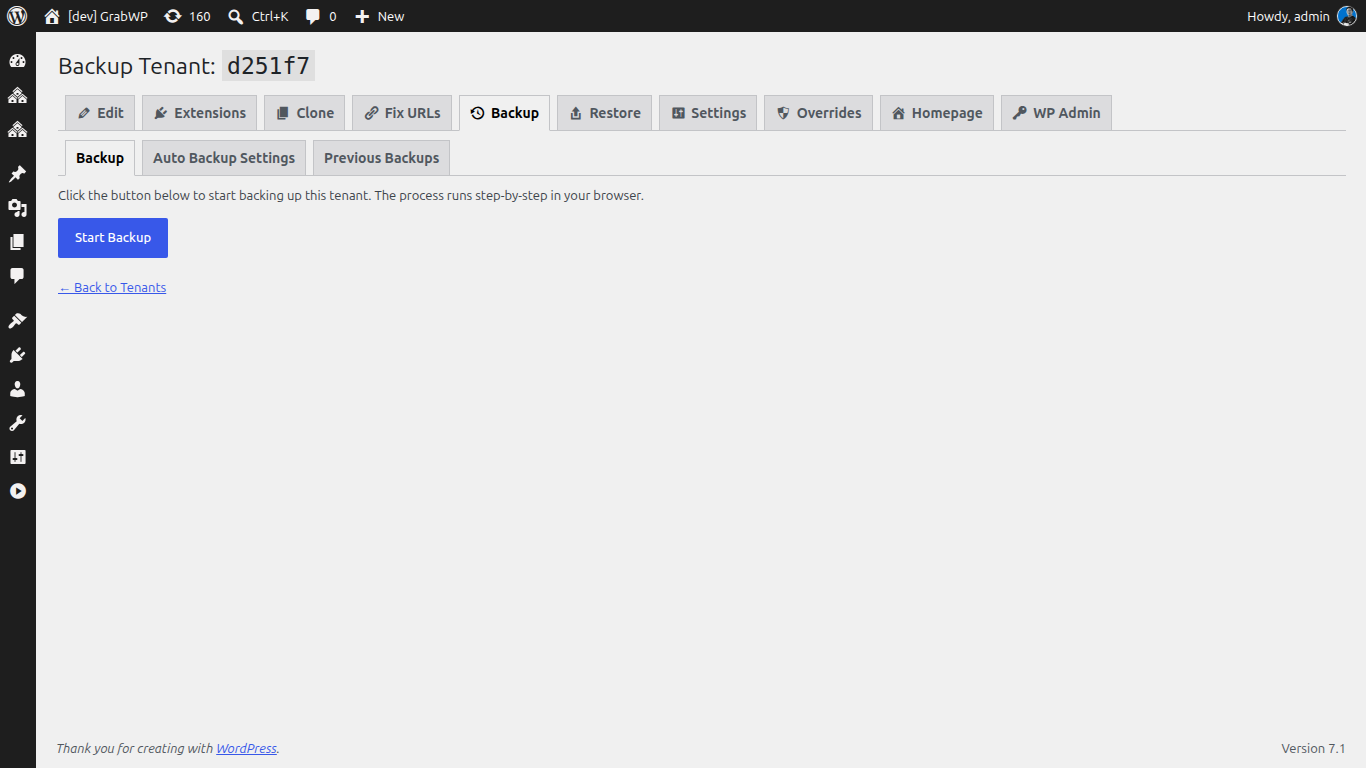
From your GrabWP Tenancy Pro admin, run a backup of the specific tenant you are handing off. Pro’s tenant backup produces a self-contained archive through a step-by-step workflow that covers the tenant’s database, uploads, content, and config, with an AJAX progress UI so you can watch it complete.
Because each tenant is isolated, the export contains that client’s site and nothing else. You are not dumping a shared database and hoping to strip out other clients afterward. One tenant in, one archive out.
The result is a single ZIP file. That file is the entire deliverable: database, uploads, plugins, and themes for that one site.
Step 2: Prepare the client’s destination install
The client needs a plain WordPress install to receive the site. This can be on their own hosting account, a subdomain, or a fresh install their new host provisions. There is no Multisite to configure and no GrabWP Tenancy required on their end.
One thing to make clear to the client up front: restoring replaces the entire target site. It is meant for a fresh or disposable install, not one that already has content they want to keep.
Step 3: Restore with the free GrabWP Restore plugin
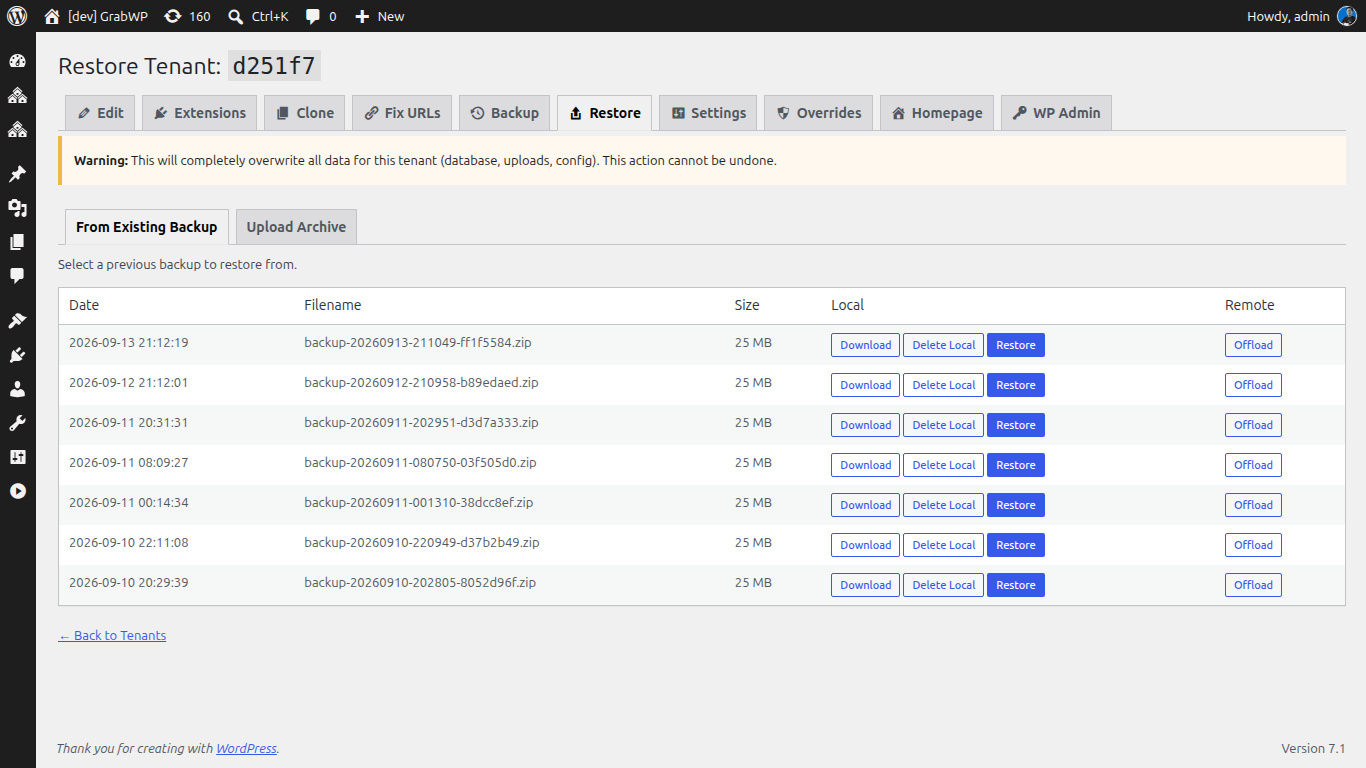
On the destination install, the client installs GrabWP Restore, a standalone free plugin whose only job is to restore a GrabWP export ZIP onto a normal WordPress site. They go to Tools > GrabWP Restore, upload the ZIP, confirm they have backed up anything on the target, and start the restore.
Under the hood the plugin does the tedious migration work automatically:
- Table prefix rewriting so the imported database matches the destination install.
- Streaming SQL import that handles large databases without choking on upload limits.
- A database-wide URL search and replace, including serialized and theme-encoded data, plus an automatic site URL update, so links and settings point at the client’s new domain instead of your old tenant address.
- A safe rename-to-.old strategy that renames the target’s existing plugins, themes, and uploads directories before writing, so nothing is silently destroyed.
When it finishes, the client logs in with the admin credentials from the exported site and removes the leftover .old directories once they have confirmed everything works.
Step 4: Confirm and disconnect
After the client verifies the restored site on their hosting, you can delete the tenant from your own setup. The client is now running the site independently, on their infrastructure, with their credentials. You are no longer in the loop as a host, which is exactly the point.
Why This Beats a Manual Migration
A hand-rolled migration means exporting files over SFTP, dumping and editing SQL, guessing at the right prefix, and running a search-replace tool to fix URLs and serialized data. Every step is a chance to break the site, and you often end up doing it live under time pressure while the client waits.
The export-and-restore workflow collapses that into two actions. You export one isolated tenant, the client restores one archive, and the prefix rewriting and URL replacement that usually cause the most pain are handled for you. Because the restore plugin is free and standalone, the client is never dependent on your license or your multi-tenant platform to keep their site running.
Handoff as a Selling Point
Offering a clean, no-lock-in exit changes how clients see you. Instead of worrying that hiring you means being stuck with you, they know the site is theirs and portable from day one. That trust makes it easier to win the project, and it makes the eventual handoff a professional finish rather than a scramble.
For the front end of this same relationship, see how to build one starter site and clone it for every client. Together, fast onboarding and clean handoff let you run a full book of client sites from one install and part ways gracefully when a project ends.
Managing client sites seriously and want per-tenant backups, dedicated databases, and the export workflow behind this handoff? The Pro plan starts at $9.99/month.
Written by
GrabWP Team
WordPress Multi-Tenancy Experts
The GrabWP team builds and maintains the GrabWP Tenancy plugin, helping developers and agencies run scalable multi-tenant WordPress platforms. With years of experience in WordPress core, hosting infrastructure, and plugin development.
Frequently Asked Questions
- Can I give a client their site without giving them access to my other clients?
- Yes. You export only that one tenant as a self-contained ZIP archive covering its database, uploads, plugins, and themes. Nothing about your other tenants is included, so the client receives their site and only their site.
- Does the client need GrabWP Tenancy Pro to receive the site?
- No. The client restores using GrabWP Restore, a separate free plugin that imports a GrabWP export ZIP onto a normal single WordPress install. They do not need your Pro license or your multi-tenant setup to run the site afterward.
- Will the URLs and links break when the site moves to the client's domain?
- No. GrabWP Restore rewrites the table prefix to match the destination and runs a database-wide URL search and replace, including serialized data, then updates the site URL automatically so links and settings point at the new home.
- Is this safe to run on a site that already has content?
- Restore is a destructive operation that replaces the entire site, so it is meant for a fresh or disposable target install. Before it writes anything it renames the existing plugins, themes, and uploads directories to .old so the previous state can be recovered manually if needed.
Editorial standards: Our content is written by WordPress experts with hands-on multi-tenancy experience. Articles are fact-checked and regularly updated to ensure accuracy.