How to Move One Client Site Off a WordPress Multisite Network

If you run agencies or hosting on WordPress Multisite, this moment is inevitable: one client outgrows the network, or wants to take their site to their own host, or you simply need to isolate them for billing and support. On paper, extracting a single subsite sounds like a five-minute export. In practice, it is one of the messiest jobs in WordPress. This guide walks the exact workflow to pull one subsite out cleanly and rebuild it as a standalone site the client can own.
1. Why single-subsite extraction is so painful
A Multisite subsite is not a self-contained site. It is a set of prefixed tables (wp_5_posts, wp_5_options, and so on) that share global tables for users, usermeta, and network settings. The built-in Tools > Export screen only gives you an XML file of posts, pages, and media. It leaves behind:
- Users and their roles, which live in the shared global tables
- Plugin and theme settings stored in the subsite’s
optionstable - Custom tables created by forms, e-commerce, or membership plugins
- Serialized data where the old subsite URL or path is baked in
Rebuild from that XML alone and you spend days re-creating accounts, reconfiguring plugins, and hunting broken links. The goal instead is a complete, byte-for-byte copy of just that subsite’s data, then a clean restore into an install that was never a Multisite.
2. Choose the target architecture
Decide where the extracted site will live before you export. Two good outcomes:
- A standalone single-site install. A plain WordPress install on the client’s own hosting or yours. This is the fully independent option and the one clients usually want when they leave.
- An isolated GrabWP tenant. If you want to keep the operational benefits of one codebase but with real separation, re-home the site as a tenant using the free GrabWP Tenancy plugin. Each tenant gets isolated uploads, its own table prefix, and domain or path-based routing, for example
yoursite.com/site/client-awith no DNS changes.
Either way the target is a single-site context, not another Multisite. That matters for the restore step below.
3. Export the subsite data
The clean way to capture everything is a per-tenant backup from GrabWP Tenancy Pro. Its backup feature produces the export archive that the restore tool reads: a full package of the site’s database and its wp-content, not just an XML dump.
- In the source environment, run the per-tenant backup for the subsite you are moving.
- The 7-step backup runs with AJAX progress so you can watch it complete.
- Download the resulting export ZIP. This archive is the one artifact you carry to the new home.
This matters because GrabWP Restore only accepts ZIP files produced by GrabWP Tenancy Pro’s backup feature. It is not a generic importer for arbitrary backups, and that constraint is what makes the restore predictable.
4. Rebuild it clean with GrabWP Restore
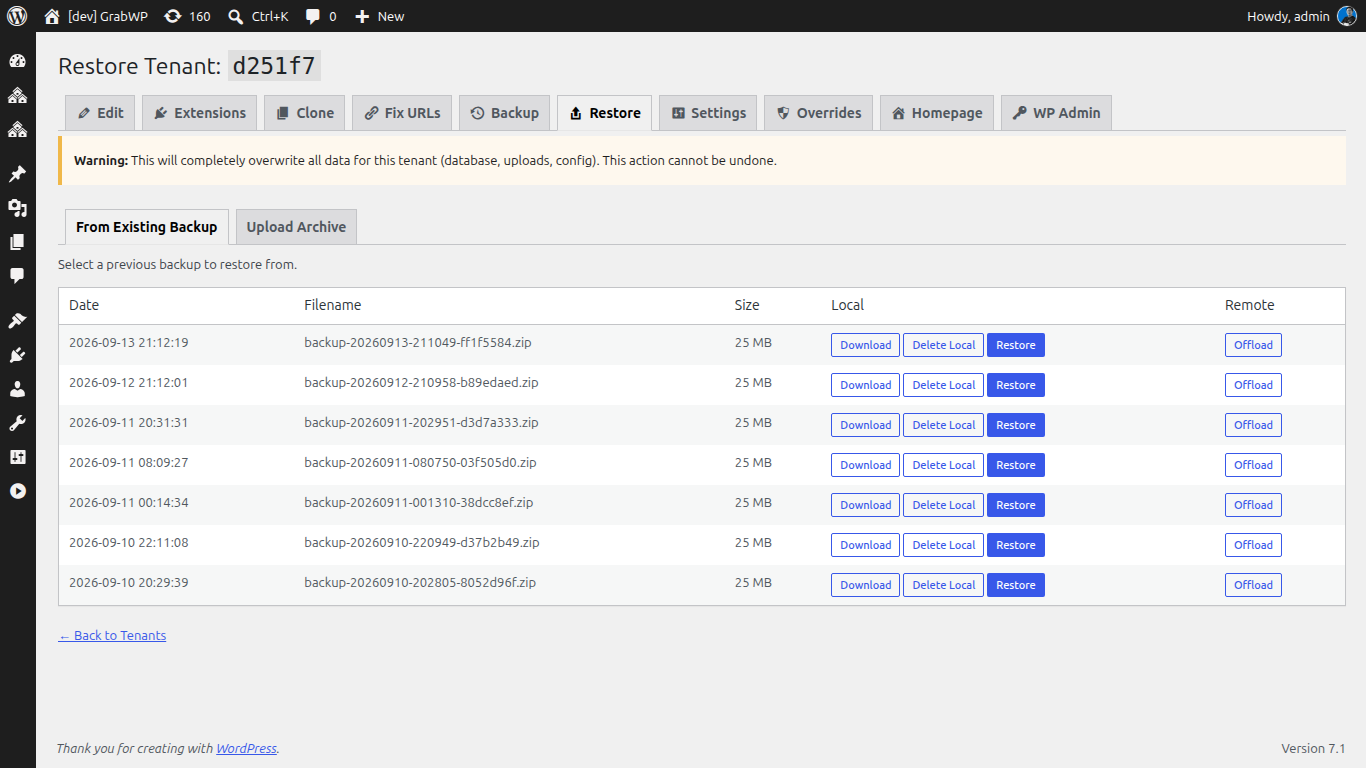
Stand up a fresh single-site WordPress install at the destination, then install the free GrabWP Restore plugin.
- Go to Tools > GrabWP Restore (administrator only).
- Upload the export ZIP from step 3.
- Confirm the explicit backup acknowledgement the plugin requires before it will proceed.
- Run the 8-step restore and watch the AJAX progress.
Under the hood, Restore does the heavy lifting that manual migrations get wrong: a streaming SQL import that handles large databases without exhausting memory, automatic table prefix rewriting so the incoming tables match the destination, and MySQL 5.7 and 8.0 collation compatibility so the import does not choke on charset mismatches.
One hard rule: Restore is intentionally disabled on Multisite. Network-wide destructive operations need a network-aware workflow, so you restore into the fresh single-site install, never into a live network. If you try to shortcut this by restoring into another Multisite, the tool will stop you.
5. Verify URLs and serialized data
This is where naive migrations fall apart. The old subsite URL or path is written into hundreds of rows, including serialized arrays that a simple find-and-replace corrupts. GrabWP Restore handles this for you:
- Site URL auto-update sets the home and site URLs to the new destination.
- Database-wide URL search-and-replace rewrites the old address everywhere, including serialized and theme-encoded data, so page builder layouts, widget options, and plugin settings keep working.
After the restore finishes, spot-check the result:
- Log in and confirm your admin account and roles came across.
- Open a page built with your page builder and confirm images and modules render.
- Search the front end for any lingering references to the old
/subsitepath. - Confirm uploads resolve, since Restore does a safe file restore that renames any existing
plugins,themes, anduploadsdirectories to.oldbefore writing the new ones, so nothing is silently overwritten.
6. Hand off or re-home as an isolated tenant
At this point you have two clean paths:
- Hand it off. The standalone install is fully the client’s. Transfer hosting credentials and you are done. No shared tables, no network dependency.
- Re-home as an isolated tenant. Keep it on infrastructure you run, but as a proper tenant. With GrabWP Tenancy Pro each tenant can use a shared MySQL prefix, a dedicated MySQL database, or SQLite, and gets its own isolated wp-content. That is real separation for support and billing, without the shared-table coupling that made extraction painful in the first place.
7. Avoid this pain next time
The reason this job is hard is architectural: Multisite couples every subsite to shared global tables. If you expect clients to come and go, start them in a data-isolation architecture where each site is already independent. Running clients as GrabWP tenants means each one already has isolated uploads, its own prefix, and independent routing, so “move a client out” becomes “run one backup and one restore” instead of a multi-day untangling job.
Get started
The extraction workflow above runs on free tooling plus one paid piece: GrabWP Restore and GrabWP Tenancy are free, and the per-tenant backup that produces the restorable export archive is part of GrabWP Pro at $9.99/month. If you are still weighing whether Multisite fits your agency at all, read when not to use WordPress Multisite next.
Written by
GrabWP Team
WordPress Multi-Tenancy Experts
The GrabWP team builds and maintains the GrabWP Tenancy plugin, helping developers and agencies run scalable multi-tenant WordPress platforms. With years of experience in WordPress core, hosting infrastructure, and plugin development.
Frequently Asked Questions
- Can I export just one subsite from a WordPress Multisite network?
- Yes, but the built-in WordPress exporter only handles posts, pages, and media as XML. It ignores users, options, custom tables, and serialized settings tied to the network. To get a complete, restorable copy of one subsite, use GrabWP Tenancy Pro's per-tenant backup, which produces a full export archive of that site's database and wp-content.
- Why won't GrabWP Restore run on my Multisite?
- GrabWP Restore is intentionally disabled on Multisite by design. Restore performs network-wide destructive operations that a Multisite needs a network-aware workflow to handle safely. The correct pattern is to export from the source, then restore into a fresh single-site standalone install, never into a live Multisite.
- Will my links and settings break after the move?
- They should not if you use a tool that rewrites URLs across the whole database. GrabWP Restore runs a database-wide search-and-replace that includes serialized and theme-encoded data, plus a site URL auto-update, so widget settings, page builder content, and options that store the old subsite path are corrected during the restore.
Editorial standards: Our content is written by WordPress experts with hands-on multi-tenancy experience. Articles are fact-checked and regularly updated to ensure accuracy.